
To allow Precision Bridge to send email notifications following project execution, you must define the email account that the notification will be sent from.
It is advised that you create an email account specifically for this purpose. Most email servers will support API usage of an account, though for some there may be additional configuration required to allow the account to be used in this way, particularly if 2 step Authentication is enabled. Please contact your email service provider for assistance.
To configure the email account to use, select File->Configure->Notifications from the menu
You will be presented with the following dialog:
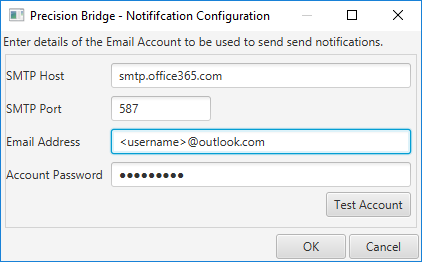
Enter the following information:
- SMTP Host: This can be obtained from your email administrator.
- SMTP Port: This is usually 587 or 465 if using SSL
- Email address: the full email address of the account you are using to send notifications
- Account Password: The password for this account (or in some cases, an API password)
Once entered, use the Test Account button to send a test email from this account to the same account. Any connection or authentication errors will result in an error message being displayed. Confirm that this account received the test email.
Click OK to save these settings. You will now be able to configure notifications for your executing projects. See the Section Configure Execution Notifications for more details.
Comments
0 comments
Please sign in to leave a comment.