
Performing Validation of a Project can identify issues that may cause execution to fail. Validation is always run when the project is loaded for execution, but it can also be run at design time.
Validation Scope
When you run validation, it performs a top down validation of the project definition, including server connections, all Form Mappings, their field mappings, key mappings, lookups, options (including attachment settings) and source deletion definitions.
The execution settings are not validated here, this will be done when the project is actually executed.
Validation includes checking the following:
- The references between objects (e.g. if a field mapping uses a lookup, check the lookup exists)
- Checking forms that are referenced in the project (source or target) actually exist on the server
- Checking fields that are referenced in the project (source or target) actually exist on the server
- Checking field values (i.e. in a value mapping where the field has a fixed set of values) actually exist on the server.
- The ordering of form mappings (e.g. form mappings referenced by inclusion filters must execute before the form mapping with the inclusion filter)
- Disabled form mappings do not prevent later mappings that reference them operating correctly.
- All mandatory attributes of field mappings have a value defined.
- All referenced variables exist
- All selected key mappings exist
- All assignment expressions or lookups being structured correctly - Note that validation will not directly check whether the lookup will run on the server successfully, however it will trap the more obvious issues such as the referenced fields existing, data type mismatches, use of unsupported functionality.
Validation does not guarantee that the project will execute without errors in individual records, but it should prevent most fatal errors that cause project execution to be aborted.
Validating a Project
To validate a project, either use select Project->Validate Project from the menu or use the context menu displayed for the project node in the project tree and select Validate Project.
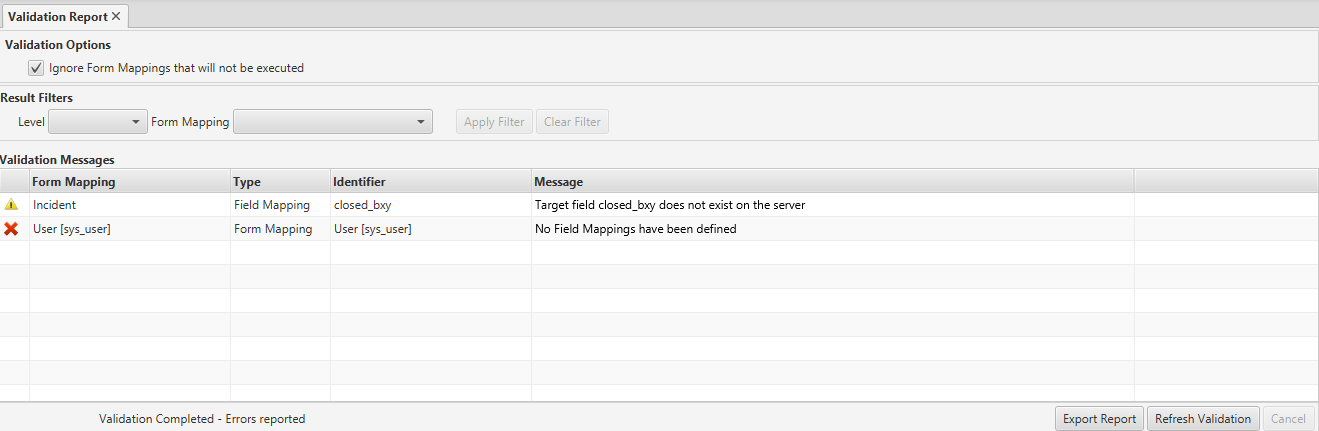
A tab 'Validation Report' will be displayed showing the progress of the validation process and the results collected thus far. Validation can take some time, particularly if the project has not been validated or executed before, since the source and target server must be queried to see if the forms and fields referenced in the project exist. After the project has been validated the first time, it will be quicker in subsequent validations since the form and field data from the server will have been cached.
Warnings  , and errors
  can be displayed in the validation results. Errors must be corrected before the project will execute. Warnings will not cause execution to fail, but should be reviewed before execution, since they can indicate potential issues as to how the data will be migrated.
The validation report identifies the Form Mapping in which the issue was found, the type of object that that has the issue and its identifier. A short message describes the exact issue.
Double clicking on a row in the report will open the Form Mapping on which the issue was found and in most cases will highlight the exact part of the form mapping that needs to be corrected.
The results can be filtered by the Level to show only Warnings or Errors. Filtering by Form mapping is also possible.
Once issues have been corrected, the Refresh Validation button can be used to re-run the validation and show only the continuing issues.
A report of the validation results can be saved as a csv report. This report will contain exactly the same information as shown in the unfiltered results table.
Validating a Single Form Mapping
It is also possible to perform validation on a single Form Mapping. This can either be done from the Validation tab of the Form Mapping or using the context menu for the form mapping in the project tree. The functionality available is essentially the same as for Validating a project (see above)
Comments
0 comments
Please sign in to leave a comment.