
Starting in Precision Bridge 6.0, there is an option to lock the project and thus prevent it being edited. This can be used to prevent accidental changes to a critical project that will later be used for migration, possibly by another team.
Locking a Project
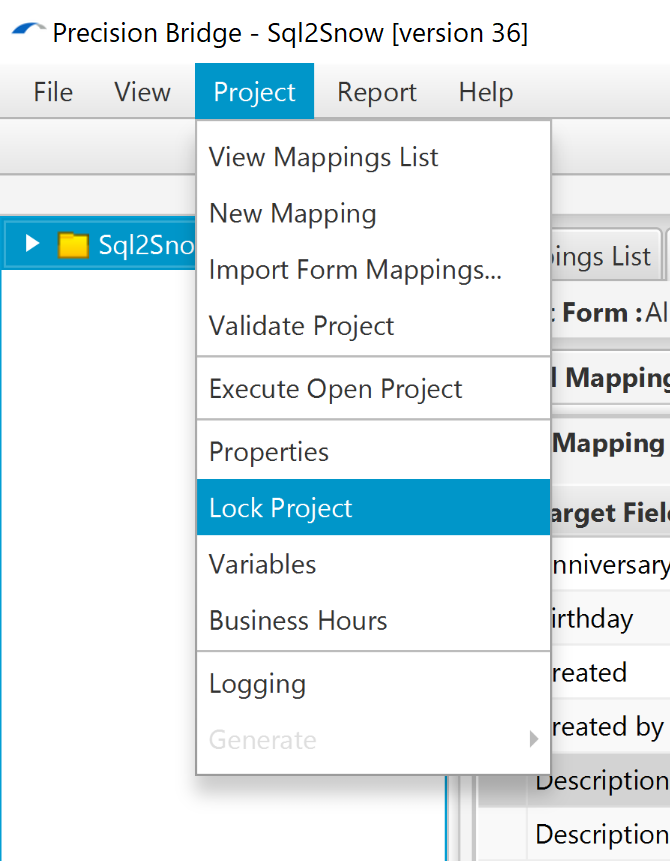
To add a lock to a project, use the Project->Lock Project menu option. You will be prompted to enter a password.
 |
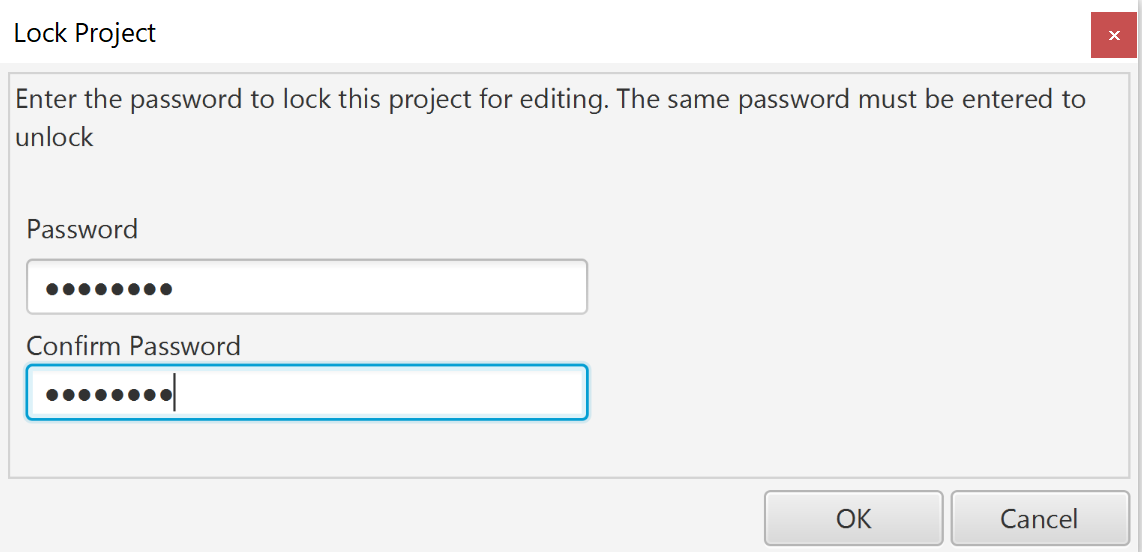 |
The same password should be entered in both fields and it must have 6 characters or more.
Once OK is clicked, the lock will be added to the project. Note the following:
- The project must be saved for the lock to be added
- The lock will not apply until the next time the project is opened
When a locked project is opened, the user will be unable to make changes to the project definition.
Note the following with respect to locked projects:
- Users will still be able to set a different source and target server for a locked project
- Users will still be able to make a copy of the project using 'Save As'. The copied project will also be locked with the same password
- Users will still be able to execute the project
- Users will still be able to change the execution settings (for example variable values, scheduling, logging/reporting settings etc)
Opening a Locked Project
When opening a locked project, the user will be presented with 2 options in the Open Project dialog:
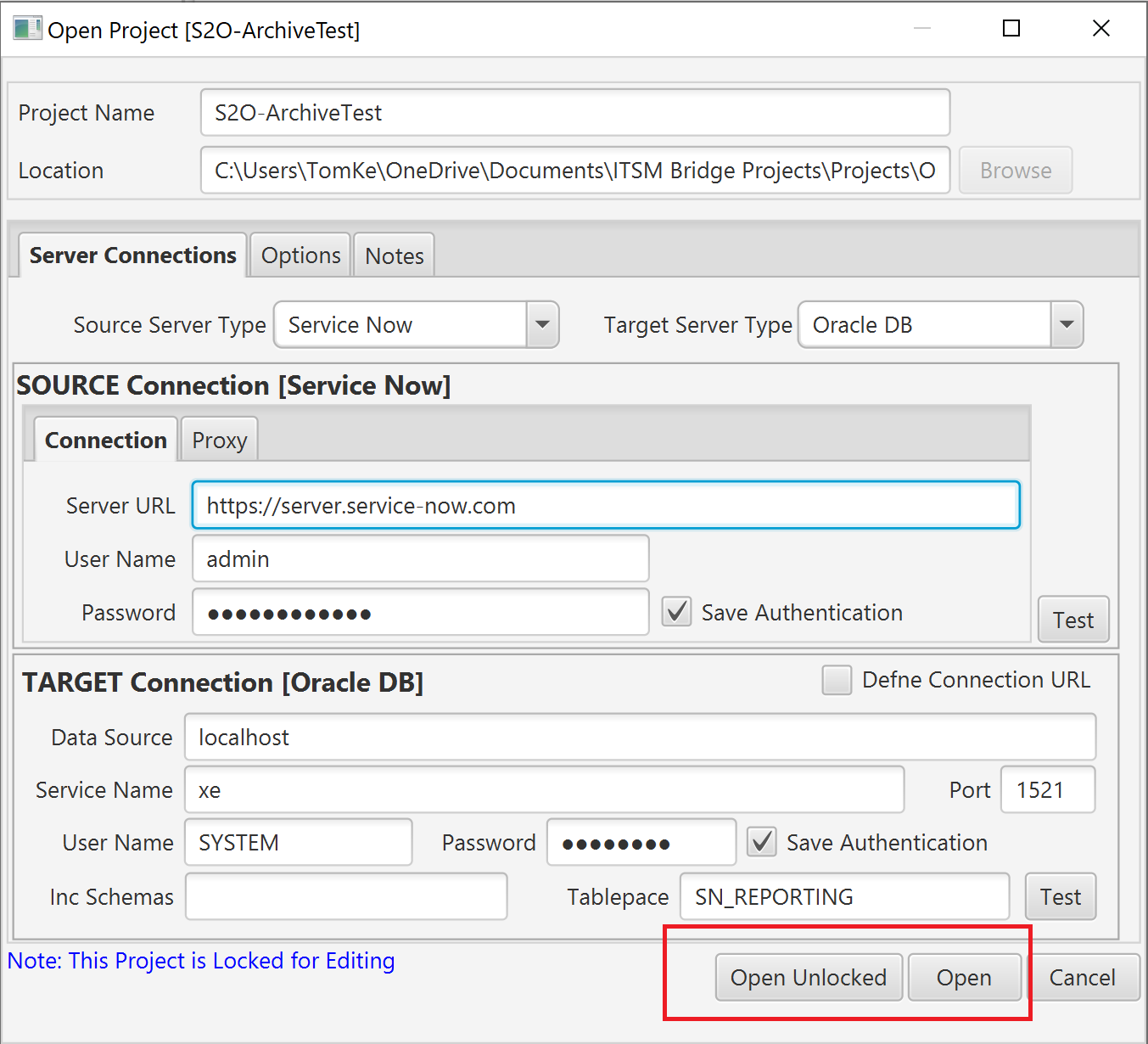
- Open. This opens the project in its locked state. The user will not be able to edit the project.
- Open Unlocked. This opens the project in its unlocked state (after the password has been entered)
If Open Unlocked is selected, the user will be prompted for the password. This will be the same password the project was locked with.
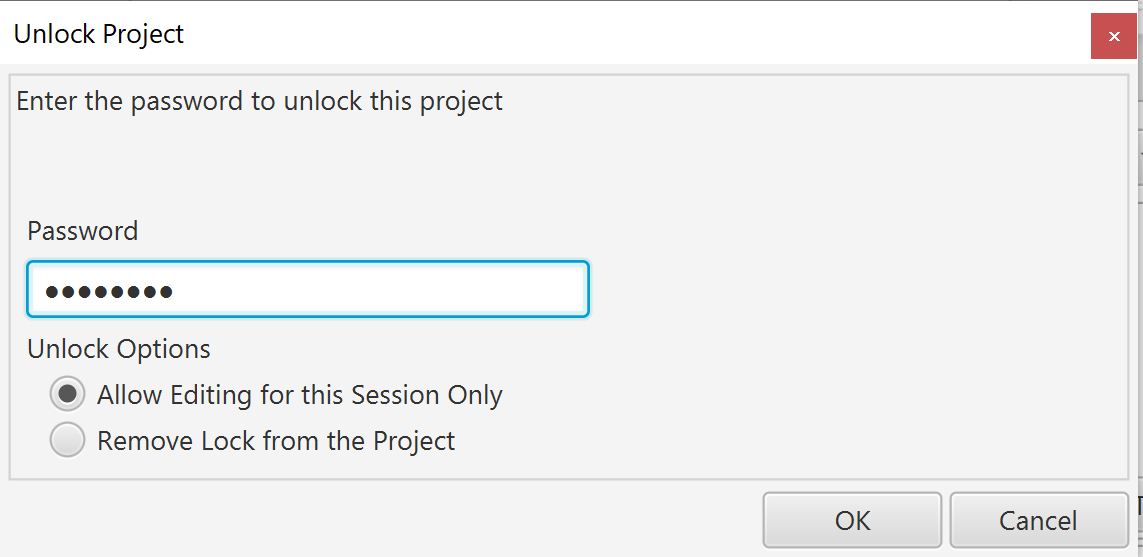
The user can choose:
- Allow Editing for this Session Only - The project will open unlocked, but the lock will remain. Next time the project is opened it will be locked again.
- Remove Lock from Project - The project will be unlocked. The lock will be removed next time the project is saved and will open unlocked next time.
Unlocking an Open Project
If a project is opened in its locked stage, you can unlock it using the Project -> UnLock Project from the menu. You will be presented with the same unlock screen as you would if Opening the Project Unlocked (see above)
Removing a Lock from a Project
The lock can be removed either during the opening of the project (see above) or by using the Project -> Remove Lock from the menu. This function is only available if the project is currently unlocked.
Forgotten the Password?
Supported Customers - Please raise a ticket via the customer support portal (requires login), if you have a locked project for which you no longer have the unlock password.
Comments
0 comments
Please sign in to leave a comment.