
Assignment Field Mappings are used whenever any manipulation or conversion of the Source field value is required. It can also be used to combine one or more Source field values, to set or combine literal values, or to set a field to a keyword value such as TIMESTAMP or NULL.
To create a new Assignment Field Mapping, first select the Target Field from the list of fields in the Field Mapping List, then select Assignment from the New Mapping field below. A new screen is then presented with the name of the target field displayed at the top in bold:
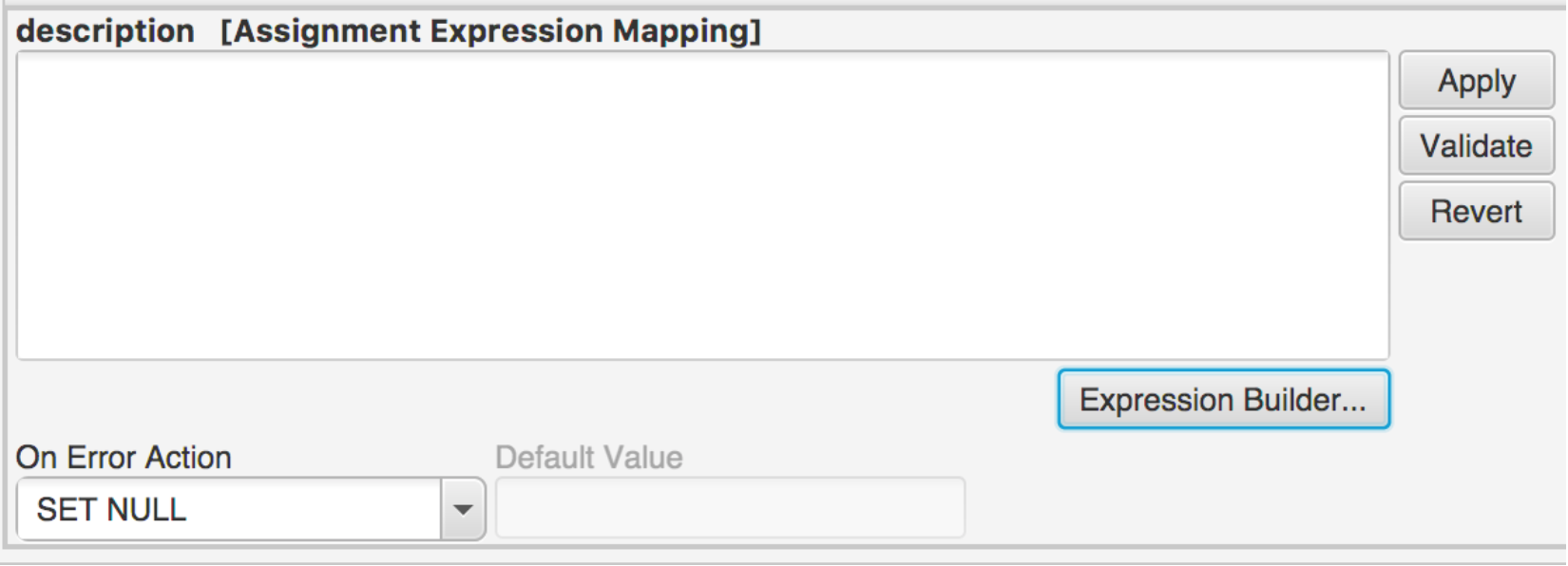
If there is an error during calculation of the value using this mapping, you can define how the error should be handled using the On Error Action field. The options available are:
|
On Error Action |
Description |
|
Set Null |
Sets the target field value to Null; |
|
Skip Record |
No target values are set for this record, skips to the next record; |
|
Log Error |
No target value is set but an error is recorded in the log. |
|
Set Default |
The Default value is used to set the target field instead. |
If Set Default is selected then the Default value must be provided in the field next to the On Error Action field.
The source field value(s) is/are converted to the target field value using an Expression Builder. This allows you to define an expression that determines how the source value(s) should be converted. Click on the Expression Builder button to launch the expression builder screen:
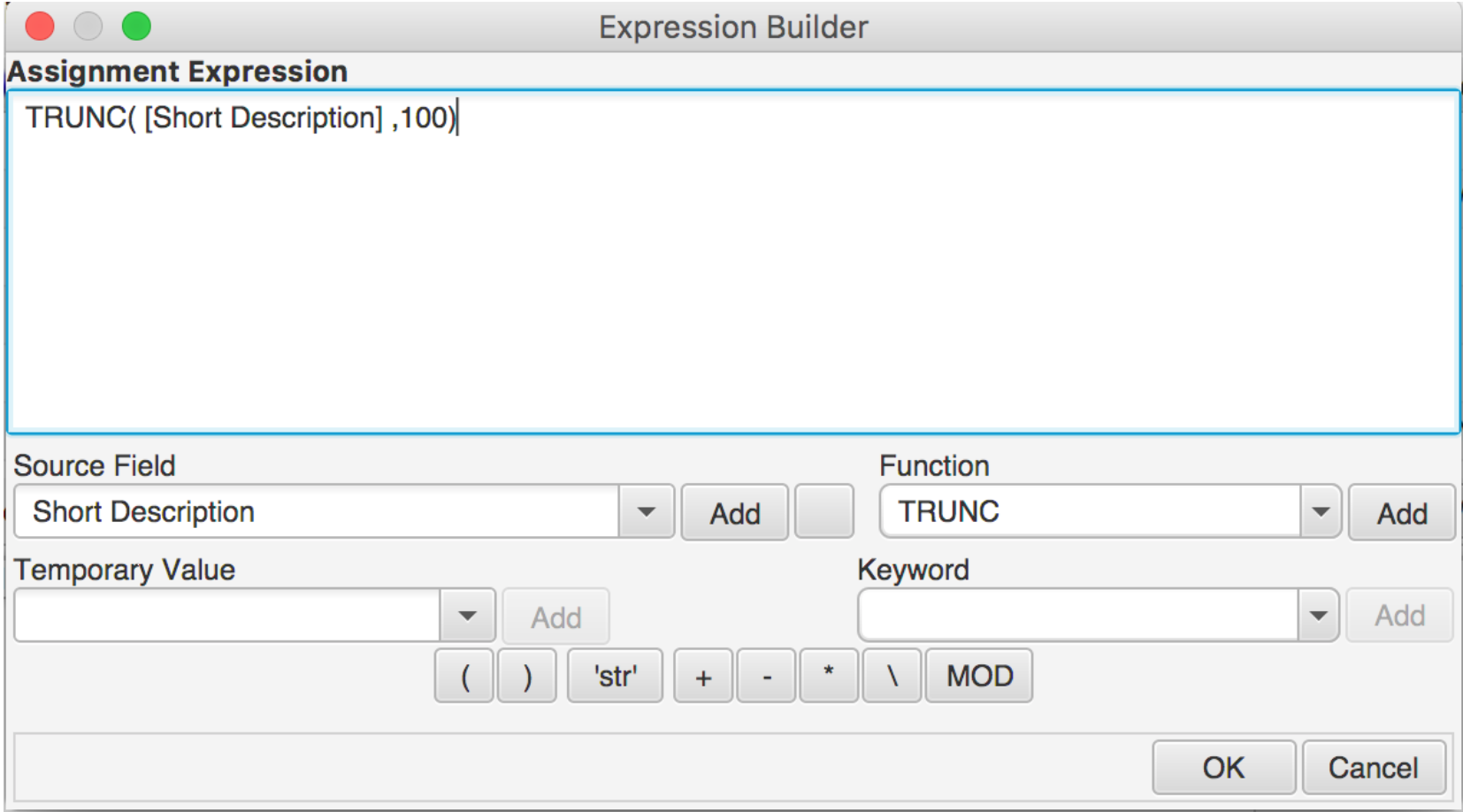
To build an expression, first select the Source field using the menu on the Source Field, then click the Add button to add it to the Expression. If its not clear which source field to choose, click on the button to the right of the Add button to bring up the comprehensive field list with filtering options. (Refer to the article on Creating a Simple Field Mapping for more details on how to use the comprehensive field list).
You can use any combination of the following Keywords when constructing your expression by selecting them from the Keyword field and clicking the Add button on the right:
NULL: Converts to the NULL string during execution;
DATE: Converts to the current date during execution;
TIMESTAMP: Converts to the current date and time during execution;
TIME: Converts to the current time during execution;
USER: Converts to the userid for the target server connection;
USER_SYS_ID: Converts to the SysID of the user for the target server connection (only applicable to ServiceNow targets).
Use the bracket buttons to group different parts of the expression together to avoid any ambiguity.
Use the ‘str’ button to add a literal value to the expression like ‘000’ or ‘COM:’
There are five operators that you can use to combine or change the value of an expression as follows:
|
Operator |
Description |
|
+ |
Used to add two strings together OR to add two integers/decimals/real values together OR to add an offset (in days) to a date value OR add an offset (in seconds) to a date-time or time value. |
|
- |
Used to subtract one integer/decimal/real value from another OR to subtract an offset (in days) from a date value OR subtract an offset (in seconds) from a date-time or time value. |
|
* |
Used to multiply two integer/decimal/real values together |
|
\ |
Used to divide one integer/decimal/real value by another |
|
MOD |
Used to calculate the remainder when one integer is divided by another. |
In addition there are a number of Functions that can be used to manipulate Source field values. These can be selected using the Function menu and added to the expression using the Add button to the right. A detailed summary of the Functions available with examples is provided in Assignment Functions Section.
Some example expressions (without functions) are provided here:
Example 1:
[Company] + '(' + [Company Abbreviation] + ')'
Adds two Source Field values together, the second of which is enclosed in brackets. Note that the source field names are enclosed by square brackets and literal values are enclosed with single quotes.
Example 2:
(TIMESTAMP + ((60 * 60) * 24))
Sets the target field to the current time plus 24 hours.
Example 3:
‘Reserved’
Sets the target field to the literal value ‘Reserved’.
You can also supplement your expression with temporary variables. Note that temporary variables must have been defined and mapped in advance. For more information on creating and using temporary variables refer to this article: Creating Temporary Variables
When you have completed entering your expression, use the Validate button on the right to check that the expression is valid. If necessary you can use the Revert button to return to the last expression entered before you validated or applied any changes.
Once the expression is validated, use the Apply button to apply and save the expression which will then be used to set the target field value during execution.
Comments
0 comments
Please sign in to leave a comment.