
Scope: ServiceNow -> ServiceNow migrations, BMC Remedy -> BMC Remedy migrations, ServiceNow -> SQL Server migrations.
This feature allows you to automatically map selected fields between the source and target forms based on matching field names. If you are migrating from BMC Remedy to BMC Remedy you can also choose to generate default mappings based on the Field ID.
To use this feature, either create a new form mapping or open an existing mapping from the Form Mapping List, select the field(s) for which mappings should be generated, and then click on the Generate Default Mappings button at the bottom right of the Field List table.
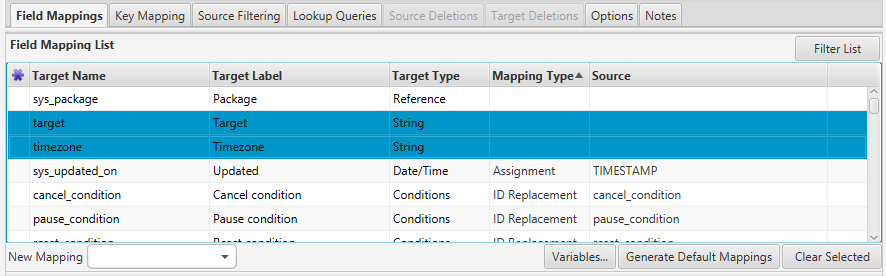
After clicking on this button, a new pop-up window is displayed with the following auto-generate options:
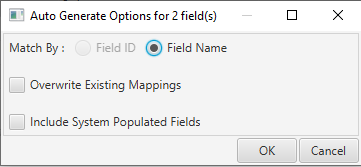
Match By Field ID (BMC Remedy only) or Field Name
If Field ID is selected, fields on the Source form are automatically mapped to fields on the Target form with the same Field ID. If Field Name is selected, fields on the source form are automatically mapped to fields on the Target form with the same Field Name.
If no matching field id/field name is found then the field is not mapped.
Overwrite Existing Mappings
If this option is selected then any existing mappings will be overwritten with the new mapped value.
Include System Populated Fields
If this option is selected then System fields on the Target form that are normally set by the application are also mapped to the corresponding fields on the Source form, (e.g. ‘Last Modified By’ field in BMC Remedy applications).
Click on OK to start the automatic field mapping generation or Cancel to cancel the operation.
All fields that meet the specified criteria are mapped using the Simple Mapping Type.
Comments
0 comments
Please sign in to leave a comment.