
Note that Hana DB can only be used as a Target Server, and only supports migration to tables generated by Precision Bridge using the Precision Bridge Archiving Wizard can be written to. Migration to SAP tables is not currently supported.
Hana DB can also be used as a reporting target (see related links below)
To use Hana DB as the Target Server, select Hana DB from the Target Server Type dropdown.
Pre-requisites:
- Hana DB JDBC Driver; First check that you have setup the path to the corresponding JDBC driver. See Configuring Access to a Hana DB Database for more details.
The connection details will be displayed and must be completed as follows:
Data Source: The host name / identifier, of the Postgres Server
Database: Optional - The name of the database you want to connect to. If left blank the default database will be used
Port: The Listening Port configured for Postgres on the server. The default is 443
Schema Name: Optional. The name of the schema you will be migrating to. Only tables in this schema will be acessible to Precision Bridge. If left empty, the user's default schema will be used.
User Name: The database user you will be connecting with. This user should have the required read/write privileges to the tables you will be working with. To be able to use Precision Bridge to generate tables for archiving, the user will also need CREATE privileges on the schema/database.
Password: The password for the above user
If you want to retain the login details for each instance, select the Save Authentication option. After selecting this option, the username and password are stored and do not need to be entered again the next time you open the same project from the same client machine. Otherwise you will need to re-enter them each time you open the project.
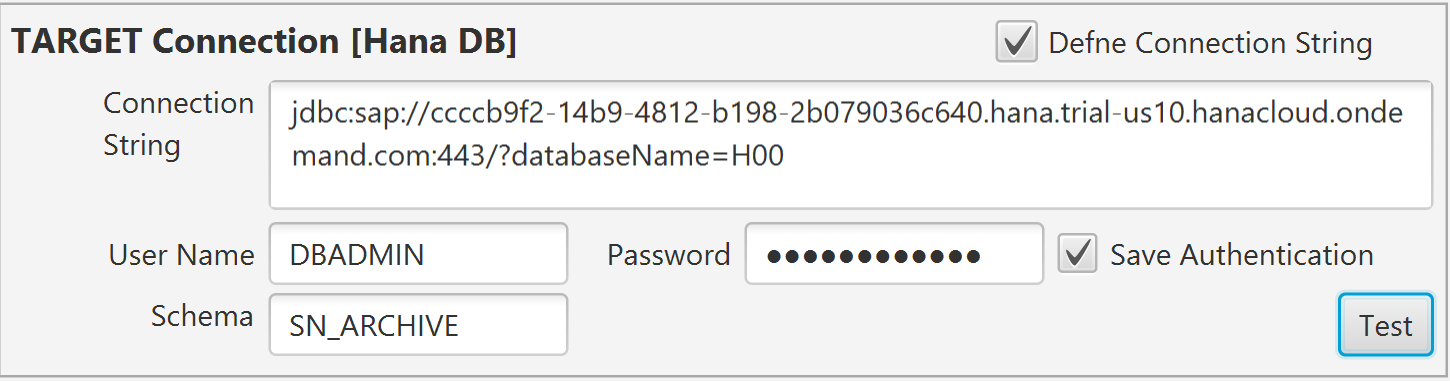
Defining a connection String
Instead of specifying the Data Source, Port and Database, you can check the Define Connection String option. This allows you to specify additional connection parameters to be used. See the Hana DB JDBC Driver documentation for more information on the options available.
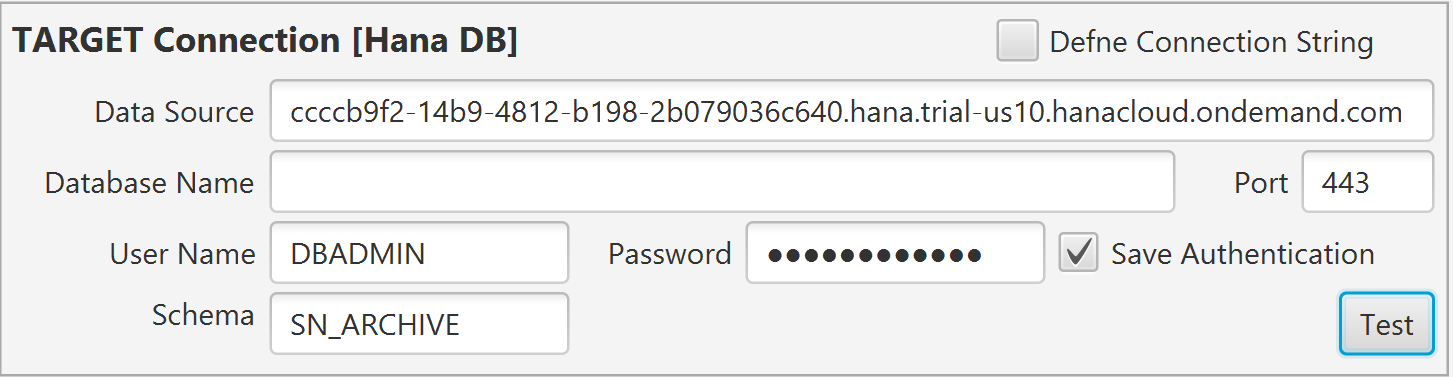
In order to check that the relevant servers can be accessed using the credentials provided, click on the Test button on the right.
If the selected server is reachable then a confirmation message will be displayed. If the server is not reachable then a failure/timeout message will be displayed. If the Hana DB server is still not reachable, check that the database id started and that you can connect using the same credentials from a native Hana DB client application.
Related Articles:
Configuring Access to a Hana DB Database
Comments
0 comments
Please sign in to leave a comment.